Connect Affil to Claude
The Affil connector gives Claude read-only access to your products, compliance guidelines, mockups, review feedback, and link analytics. It uses Model Context Protocol (MCP) to retrieve this information when you ask Claude for help.
Before you connect
You need an Affil account with affiliate or staff access to an organization. The connector returns only the information your account can access. If you need an account or organization access, contact your Affil administrator or support@affil.ai.
Your Claude account must allow connectors. Your Team or Enterprise administrator may need to enable the connector for your organization.
Set up the connector
Server URL:
https://mcp.affil.ai/mcp
Open Affil in the Claude directory and follow these steps. Then ask Claude a question about your Affil information.
- 2Sign in with AffilSign in with your Affil account and approve access. The listing then shows Connected.
- 3Turn on Affil in your chatIn a Claude chat, open the + menu, choose Connectors, and make sure Affil is on.
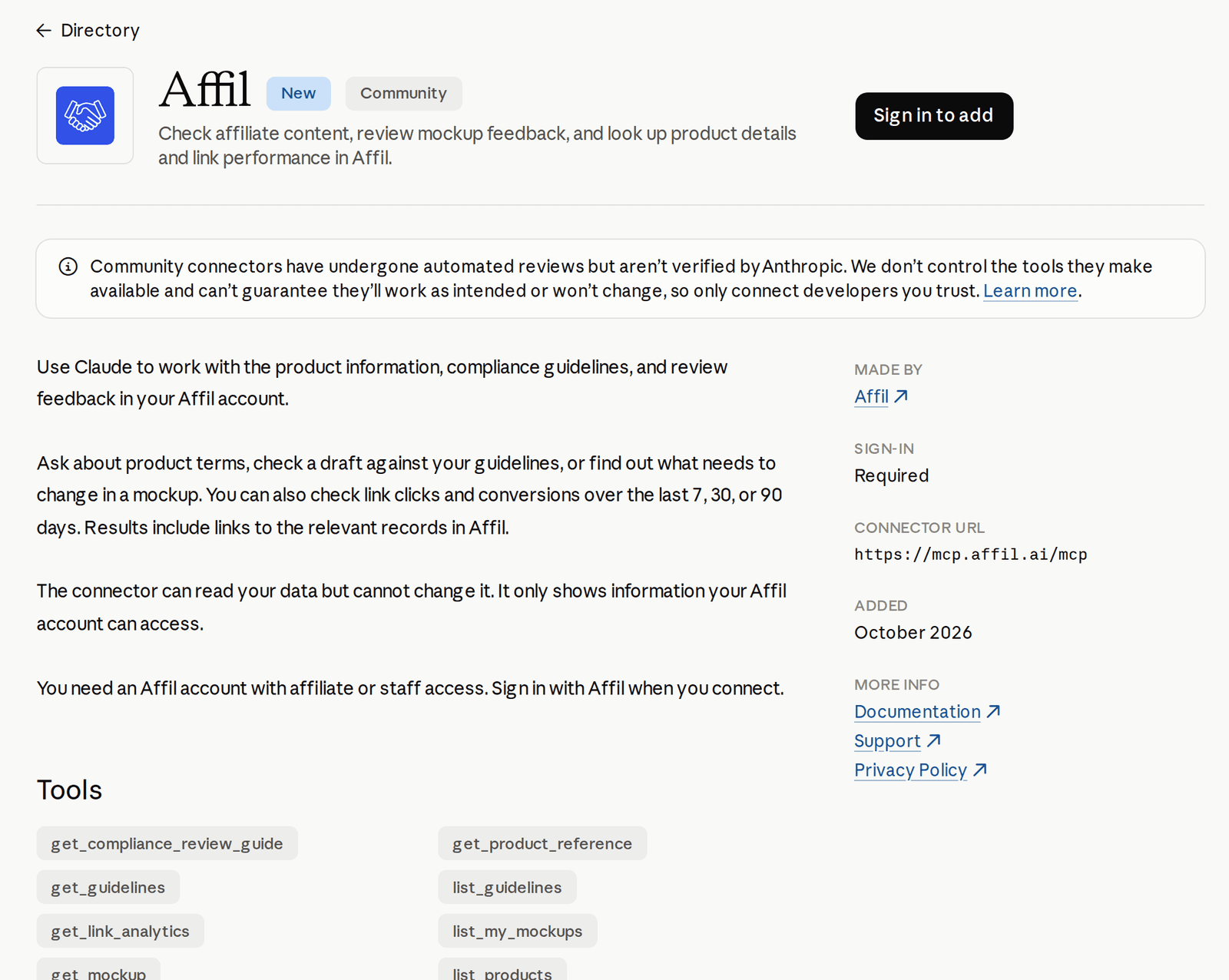
You can also sign in to the Affil setup screen to copy the URL and see setup instructions for other supported assistants.
Try these requests
- “List my Affil products and link to each one in the dashboard.”
- “Read Affil's compliance review guide, then help me check this draft against my product guidelines.”
- “Show my mockups and summarize their review feedback.”
- “Summarize my Link Clicks and conversions for the last 30 days.”
Review the source information and the returned dashboard links before publishing content. The connector helps you read compliance guidance; it does not approve content or replace the Affil review process.
Available tools
- list_products
- List your products and open their Affil dashboard links.
- get_product_reference
- Read product references and published promotional terms. You can request terms for a publication date.
- list_guidelines
- Find the compliance guidelines available to your organization.
- get_guidelines
- Read a guideline document or selected sections.
- get_compliance_review_guide
- Read Affil's instructions for checking content against compliance guidelines.
- list_my_mockups
- List your mockups, review status, and dashboard links.
- get_mockup
- Read a mockup, its versions, product references, checklist, and review feedback.
- get_link_analytics
- Read your Link Clicks, Apply Clicks, and conversions for the last 7, 30, or 90 days.
Results are grouped by organization. If you belong to more than one organization, tell Claude which organization to use. Some lists return a continuation cursor so Claude can retrieve the next page.
Access and privacy
The connection uses OAuth, which lets you authorize access without giving Claude your Affil password. All eight tools are read-only. They cannot create, edit, delete, submit, approve, or publish your Affil content. Your organization membership and permissions still apply.
Information retrieved through the connector is shared with Claude for your request. Your use of Claude is subject to your Anthropic agreement and settings. Read Affil's privacy policy for details about Affil's data handling.
To stop using the connector, disconnect Affil in Claude's connector settings. If a connection expires, reconnect and sign in again.
Troubleshooting and support
If results are empty or an item is unavailable, confirm that you signed in to the correct Affil account and have access to the organization. Ask your administrator to check your product access. If sign-in fails, disconnect and reconnect the connector.
For help, email support@affil.ai or read Claude's connector setup guide.